Artefact_list
List of elements that can be browsed. the elements can be other artefacts or metrics and the list is used to list them in a synthetic view, easier to navigate.
Instances
Artefact list can be instanciated into multiple display :
- requirement_list
- requirement_coverage
- requirement_validation
- sample_list
requirement_list
This is metric instance purpose is to list the expected requirement. Most probably it wont be displayed in an other stage than scoping.
we can also have several requirement_list for different usages :
- ODD requirement list
- Functional requierement list
- Non-functional requiermeent list
Configuration
In the config object, you can include the column key to define which columns to display. If both the column key in the config and the values in the metrics are defined, the specified columns will be displayed.
   ./config.json

"metrics": [
         {
      "name":  "ODD_SPECIFICATION", "scope": "dataset","type":  "requirement_list","title": "ODD requierements",
      "description": ".....",  "tooltip": "List of ODD requierements",
      "config": {
        "columns": [
        "id",
        "description",
        "type",
        "ODRange",
        "ODDRange"
        ]

    }
    ],
Payload
    ./payload.json

{
    "metricName": "ODD_SPECIFICATION",
    "scopeId" : "ODD_Spec",
    "values": [
        {
            "id": "01", "origin" : "context",
            "description" : "Conveyor speed",
            "type" : "float",
            "ODRange"  : [0, 10], # Range of the absisse for this dimension
            "ODDRange" : [
                { "name" : "Busisness ODD Request", "range" : [2, 5], "backgroundColor": "#008000"}, # Target coverage ODD Range
                { "name" : "Forbidden ODD to monitor", [6, 8], "backgroundColor": "#ff0000"}
            ]
        },
        {
            "id": "02", "origin" : "target",
            "description" : "Part’s position",
            "type" : "enumerate",
            "ODRange"  : ["front", "back", "left"],
        },
        {
            "id": "03", "origin" : "sensor",
            "description" : "Brightness",
            "type" : "float",
            "ODRange"  : [0,255],
            "ODDRange" : [
                { "name" : "Busisness ODD Request", "range" : [80, 160], "backgroundColor": "green"}]
        }
    ]
},
Representations
Company Level representation
A list logo to directly access the requirement_list in "Project" abstraction level. 
Project Level representation

InDepth Level representation
It is the same as the project Level representation
requirement_coverage
This metric instance purpose is to list the expected requirements and the element of metric that fullfill each requirement of the list. It won't be displayed in scoping but will be in dev and maybe in operation.
Configuration
   ./config.json

"metrics": [
         {
      "name":  "ODD_COVERAGE", "scope": "dataset","type":  "requirement_coverage","title": "ODD coverage",
      "description": ".....",  "tooltip": "ODD Coverage list",
      "config": { }
    }
    ],
Payload
    ./payload.json

{
    "metricName": "ODD_COVERAGE",
    "linkedMetrics" : [{"type" : "artefact_list", "metricName" : "ODD_SPECIFICATION", "scopeId" : "ODD_Spec" }],
    "values": [
        {
            ?
        },
        {
            ?
        },
        {
            ?
        }
    ]
},
Representations
Company Level representation
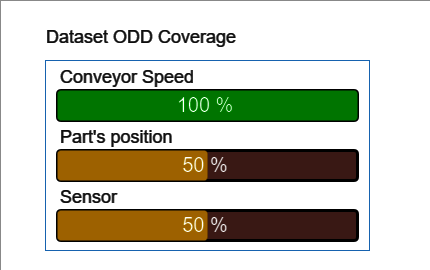
Project representation
InDepth representation
Clicking one of the element in the Coverage column will display the correspond metric in the associated box on the right.

requirement_validation
This metric instance purpose is to validate the requirements and the element of metric that fullfill each requirement of the list.
Under development 
sample_list
used to navigate through a dataset sample, it allows the direct manipulation of data. Generally speaking, it doesn't expect validation as its purpose is mainly informative. Although we might use it for specific purpose like validating a specific sample of data for a specific usage.
Configuration
Type configuration with specific parameter that need to be describe
In the config object, you can include the column key to define which columns to display. If both the column key in the config and the values in the metrics are defined, the specified columns will be displayed.
   ./config.json

   "metrics": [
    {
      "name":  "DATA_SAMPLE", "scope": "dataset","type":  "artefact_list","title": "Data Sample",
      "description": ".....",  "tooltip": "View a sample of data",
      "config": {
      "columns": [
        "id",
        "description",
        "comment"
      ]
      }
    },
Payload
    ./payload.json

    {
        "metricName": "DATA_SAMPLE",
        "values":  [
        {
         "id": "01",
         "origin": "target",
         "description": "Image_O1",
         "comment": "Brightness fits expectations",
         "sample": [
          {
           "id": "01",
           "type": "background",
           "raster": 1,
           "image": "http://localhost:5173/static/images/Image_Overlay_Layer_1.png"
          },
          {
           "id": "02",
           "type": "heatmap",
           "raster": 1,
           "image": "http://localhost:5173/static/images/Image_Overlay_Layer_2.png"
          },
          {
           "id": "03",
           "type": "zones",
           "raster": 0,
           "image": "http://localhost:5173/static/images/Image_Overlay_Layer_3.svg"
          }
         ]
        },
         {
          "id": "02",
          "origin": "target",
          "description": "Image_O2",
          "sample": [
           {
            "id": "01",
            "type": "background",
            "raster": 1,
            "image": "http://localhost:5173/static/images/Image_Overlay_Layer_1.png"
           }
          ]
         },
         {
          "id": "03",
          "origin": "target",
          "description": "Image_O3",
          "comment": "Annotated",
          "sample": [
           {
            "id": "01",
            "type": "background",
            "raster": 1,
            "image": "http://localhost:5173/static/images/Image_Overlay_Layer_2.png"
           }
          ]
         }
        ]

    }
In this example, the payload contains path to the image to be listed. Yet it is single layer images. We can also provide multiple layer images just like it is done in the image_overlay artefact type.
Representations
The Sample Viewer instance relies on two graphical components :
- the artefact list graphical component
- the image manipulation graphical component
the artefact list graphical component will list all the items within the data sample, allowing the selection of a specific item while the image graphical component will display the selected item and offers a few manipulation functionality.
Company level representation

An icon graphic component indicates that sample browsing is available
Project level representation
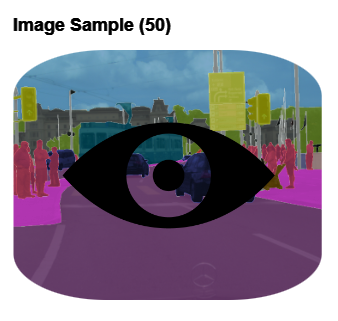
Using a static image graphical component, the number of sample element available for browsing is indicated.
InDepth level representation
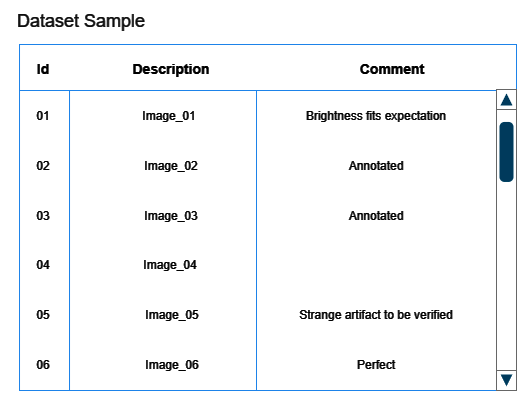
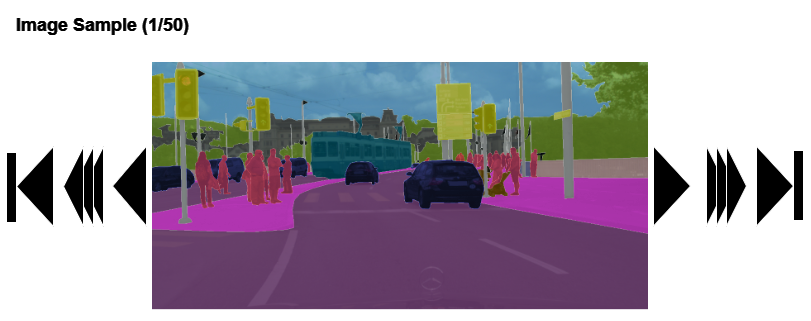
Simple functionalities regarding the list :
- clicking an item will display the content in the viewer below
Various functionalities for the sample list :
- next/previous element
- next (+10) / previous (+10) element
- first / last element
- zoom function
- pan function
- index of current element / total amount of element
- if image contains multiple layer, the possibility to active/deactivate each layer