My first AI Component
Folder structure
The folder structure for a Klarity AI Component project is built with the following elements :
- a configuration file with all possible artefact type
- an configuration description for all artefact type
- a single payload V0.0.0
- an artefact description for all artefact type at all abstraction level.
- the folder and file structure as a reference
ProjectName/
├── configuration/
│   ├── configuration.json
│   └── artefacts/
│       ├── ARTEFACT_NAME_1.json
│       └── ARTEFACT_NAME_2.json
│
├── V0.0.0/
│   ├── payload.json
│   └── artefacts/
│       ├── ARTEFACT_NAME_1.json
│       ├── ARTEFACT_NAME_2.json
│       └── files/
│           ├── html/
│           │   └── file_for_html_content_artefact.html
│           ├── images/
│           │   ├── image_to_be_displayed_1.jpg
│           │   └── image_to_be_displayed_2.png
│           └─── videos/ (or any folder containing media or data to be made availabe through KD)
│
└─── Vx.y.z/
    ├── payload.json
    └── artefacts/
        ├── ARTEFACT_NAME_1.json
        └── ARTEFACT_NAME_2.json
Configuration of the Lifecycle
The configuration of the life cycle is achieved using a Configuration file pushed into the backend as explained here
Configuration file template
The following configuration request two artefacts :
- a confusion matrix
- a Return on Investment
Both contained in a single Artefact Group named "TEST".
They are both displayed at each stage (scoping, validation and operation), at each abstraction level (company, project and indepth)
{
    "name": "DEFAULT_CONFIGURATION",
    "version": "V1",
    "projectLeader": "admin@klarity.test",
    "validation": {
        "scoping": "USER_VALIDATION",
        "development": "USER_VALIDATION",
        "operation": "NO_VALIDATION"
    },
    "views": {
        "scoping": {
            "company": {
                "groups": [
                    "TEST"
                ]
            },
            "project": {
                "groups": [
                    "TEST"
                ]
            },
            "indepth": {
                "groups": [
                    "TEST"
                ]
            }
        },
        "development": {
            "company": {
                "groups": [
                    "TEST"
                ]
            },
            "project": {
                "groups": [
                    "TEST"
                ]
            },
            "indepth": {
                "groups": [
                    "TEST"
                ]
            }
        },
        "operation": {
            "company": {
                "groups": [
                    "TEST"
                ]
            },
            "project": {
                "groups": [
                    "TEST"
                ]
            },
            "indepth": {
                "groups": [
                    "TEST"
                ]
            }
        }
    },
    "groups": [
        {
            "name": "TEST",
            "metrics": [
                {
                    "name": "CONFUSION_MATRIX",
                    "scopeId": "foo"
                },
                {
                    "name": "OPERATION_ROI",
                    "scopeId": "foo"
                }
            ],
            "config": {},
            "validation": {
                "scoping": "USER_VALIDATION",
                "development": "USER_VALIDATION",
                "operation": "USER_VALIDATION"
            }
        }
    ],
    "metrics": [
        {
            "name": "CONFUSION_MATRIX",
            "scope": "datasetModel",
            "type": "confusion_matrix",
            "title": "Confusion matrix",
            "description": "Confusion matrix description",
            "tooltip": "Tooltip operation roi",
            "config": {
                "horizontal_list": [
                    "Predicted",
                    [
                        "Positive",
                        "Negative",
                        "Unknown"
                    ]
                ],
                "vertical_list": [
                    "Ground Truth",
                    [
                        "Positive",
                        "Negative"
                    ]
                ]
            }
        },
        {
            "name": "OPERATION_ROI",
            "scope": "dataset",
            "type": "operation_roi",
            "title": "Test operation roi",
            "description": "La description de operation_roi",
            "tooltip": "Tooltip operation roi",
            "config": {
                "colors": {
                    "perf_gain": "#9ad0f5",
                    "op_gain": "#90EE90",
                    "other_gain": "#F6B26B",
                    "hr_gain": "#BF55EC",
                    "op_loss": "#FFD700",
                    "hr_loss": "#FF9999",
                    "perf_loss": "#FF69B4",
                    "other_loss": "#A9A9A9"
                },
                "epoch_scale": "day"
            }
        }
    ],
    "actions": []
}
This configuration file can be pushed into the backend : POST /rest/configurations
Scoping : the first version
Preparation
The following code is for PCIV 1.0.0 of AI Component named "MyFirstAIComponent" associated to Configuration "DEFAULT_CONFIGURATION" of version V1.
It contains the value (payload) for the Confusion Matrix.
{
    "kdConfiguration": "DEFAULT_CONFIGURATION",
    "kdConfigurationVersion": "V1",
    "projectName": "MyFirstAIComponent",
    "prevVersionTags": [],
    "versionTag": "1.0.0",
    "stage": "scoping",
    "metrics": [
        {
            "metricName": "CONFUSION_MATRIX",
            "values": [
                [
                    8345,
                    35,
                    10
                ],
                [
                    27,
                    235,
                    5
                ],
                [
                    2,
                    2,
                    2
                ]
            ]
        }
    ]
}
Pushing
This PCI Version file can be pushed into the backend : POST /rest/versions
Validating
Connect to Klarity Dashboard and you should see the following :

This is the Company Abstraction Level view where you can see the artefact group of stage Scoping for all the components, currently only one : MyFirstAIComponent.
Click on 'MyFirstAIComponent' to jump into the Project Abstraction Level :
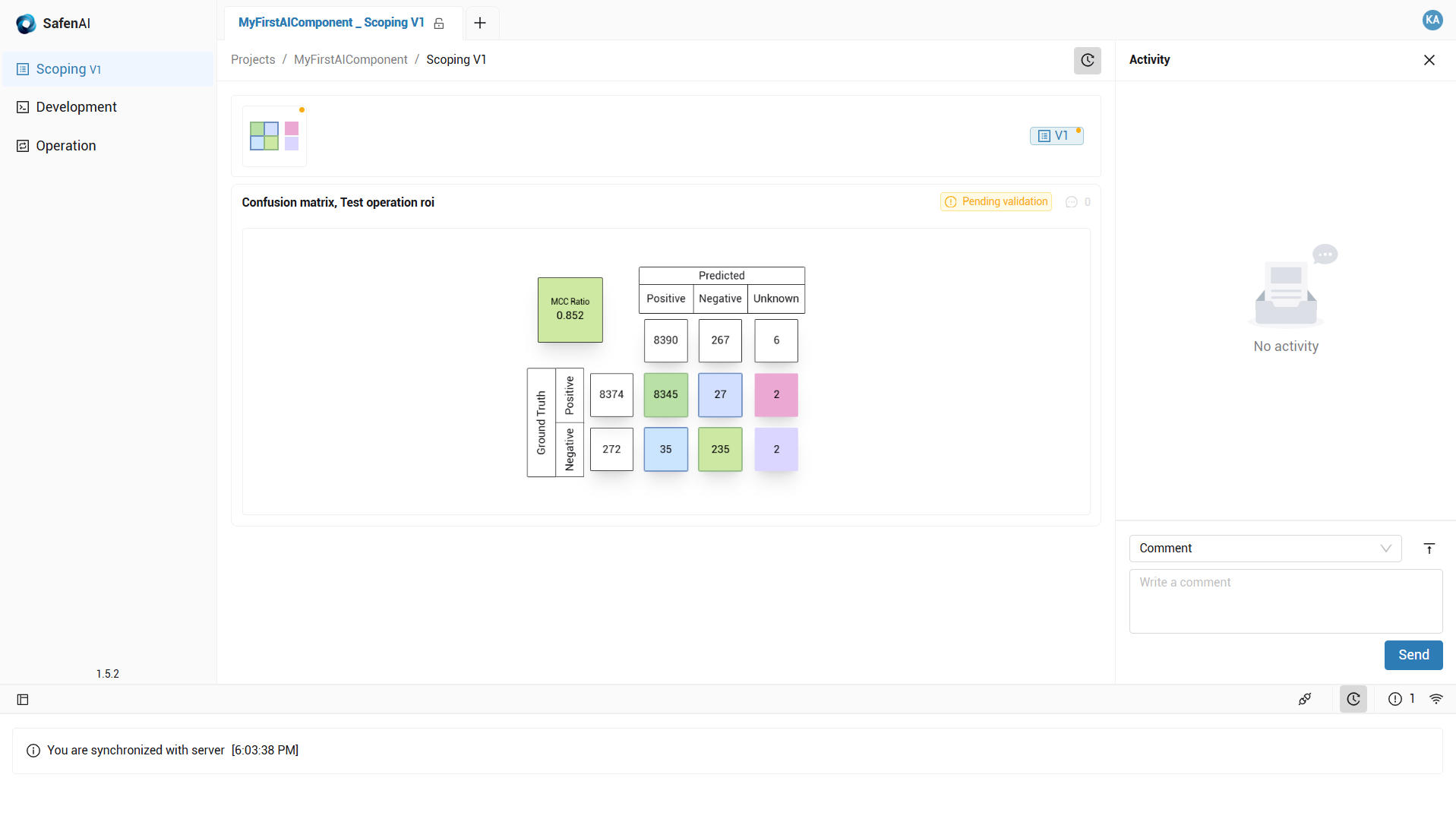
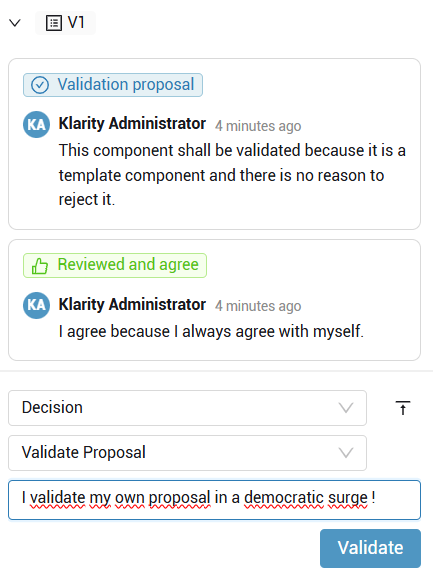
From here you can propose the validation of the AI Component by clicking in the action in the right part :
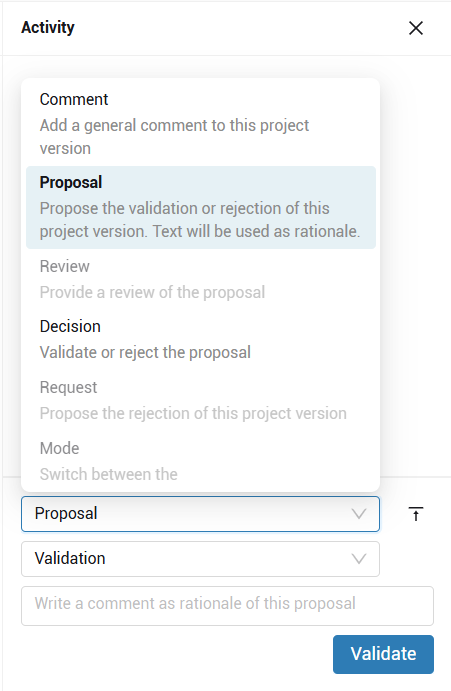
Make sure you select "validation" in the second dropdown.
You can then write down your rationale for the validation of this component and click "validate"
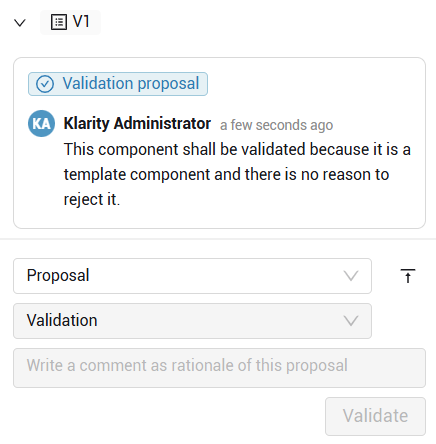
Someone else can now come and review your proposal. In our case we will do it ourselves :
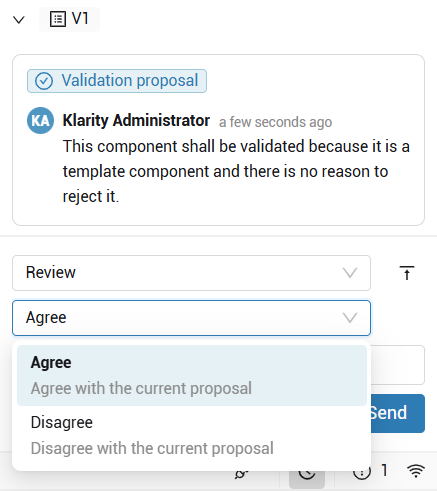
Select 'Review' and then 'Agree' before writing down why you Agree with the Validation Proposal.
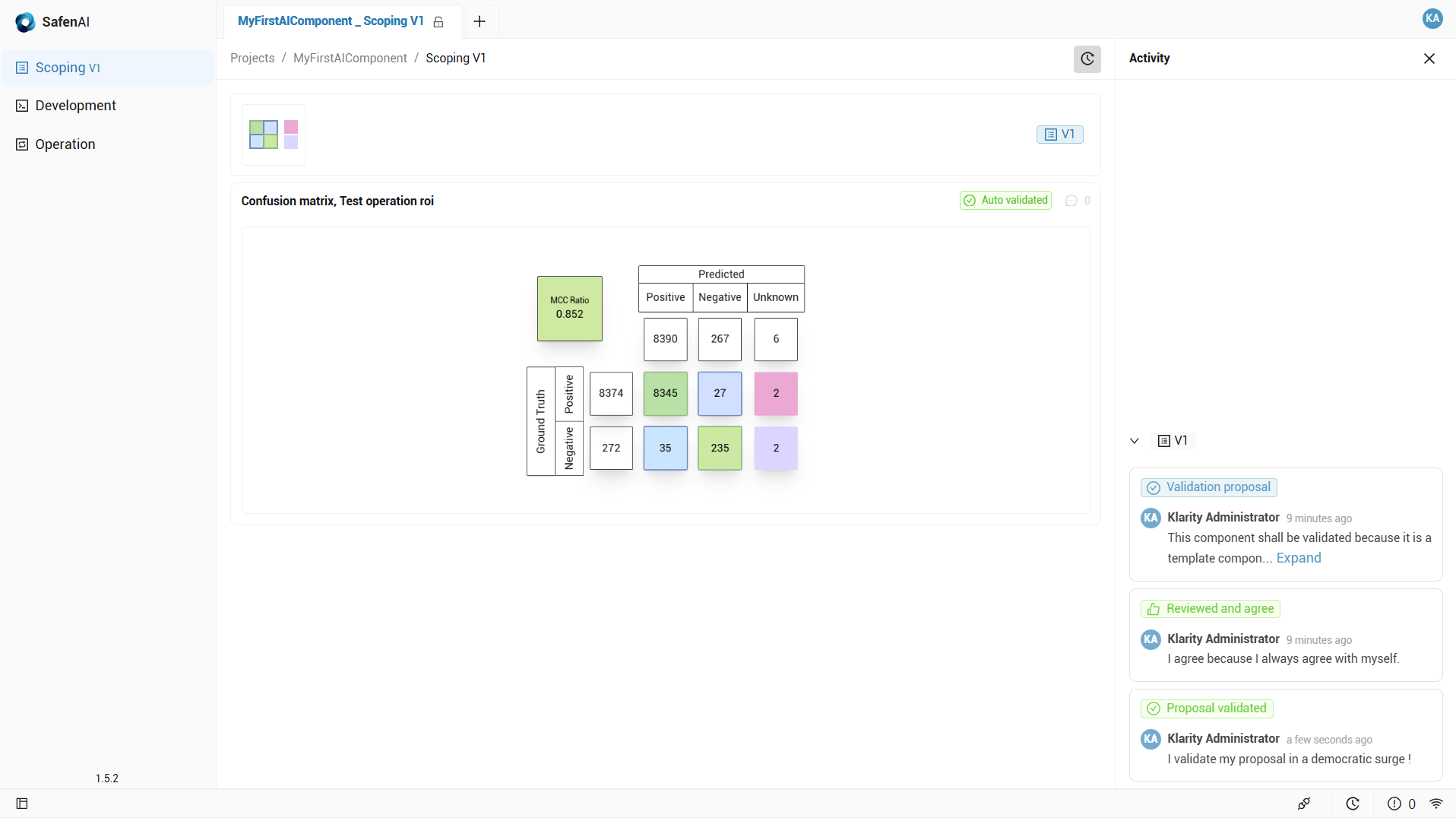
Your AI Component Scoping stage is now validated, we are now waiting for the Validation version of it.
Validation : an increment
Validation will increment the version :
- Unvalidated Scoping version was 1.0
- Validating the Scoping Stage created a Read-Only version for the Validation Stage (formerly 'development'): version 1.1
- On the Klarity Dashboard side we will now be awaiting version 1.2.
Preparation
The following code is for PCIV 1.2.0 of AI Component named "MyFirstAIComponent" associated to Configuration "DEFAULT_CONFIGURATION" of version V1.
It contains the value (payload) for the confusion Matrix.
{
    "kdConfiguration": "DEFAULT_CONFIGURATION",
    "kdConfigurationVersion": "V1",
    "projectName": "MyFirstAIComponent",
    "prevVersionTags": [
        "1.1.0"
    ],
    "versionTag": "1.2.0",
    "stage": "development",
    "metrics": [
        {
            "metricName": "CONFUSION_MATRIX",
            "values": [
                [
                    700,
                    350,
                    100
                ],
                [
                    270,
                    235,
                    500
                ],
                [
                    20,
                    20,
                    20
                ]
            ]
        }
    ]
}
Pushing
This PCI Version file can be pushed into the backend : POST /rest/versions
Validating
Once the new version have been pushed, you'll be able to see it in the Company Abstraction Level.

Clicking on the Development (shall be replaced by 'Validation' ) icon you'll jump to the Project Abstraction Level of the Validation Stage (formerly Development)
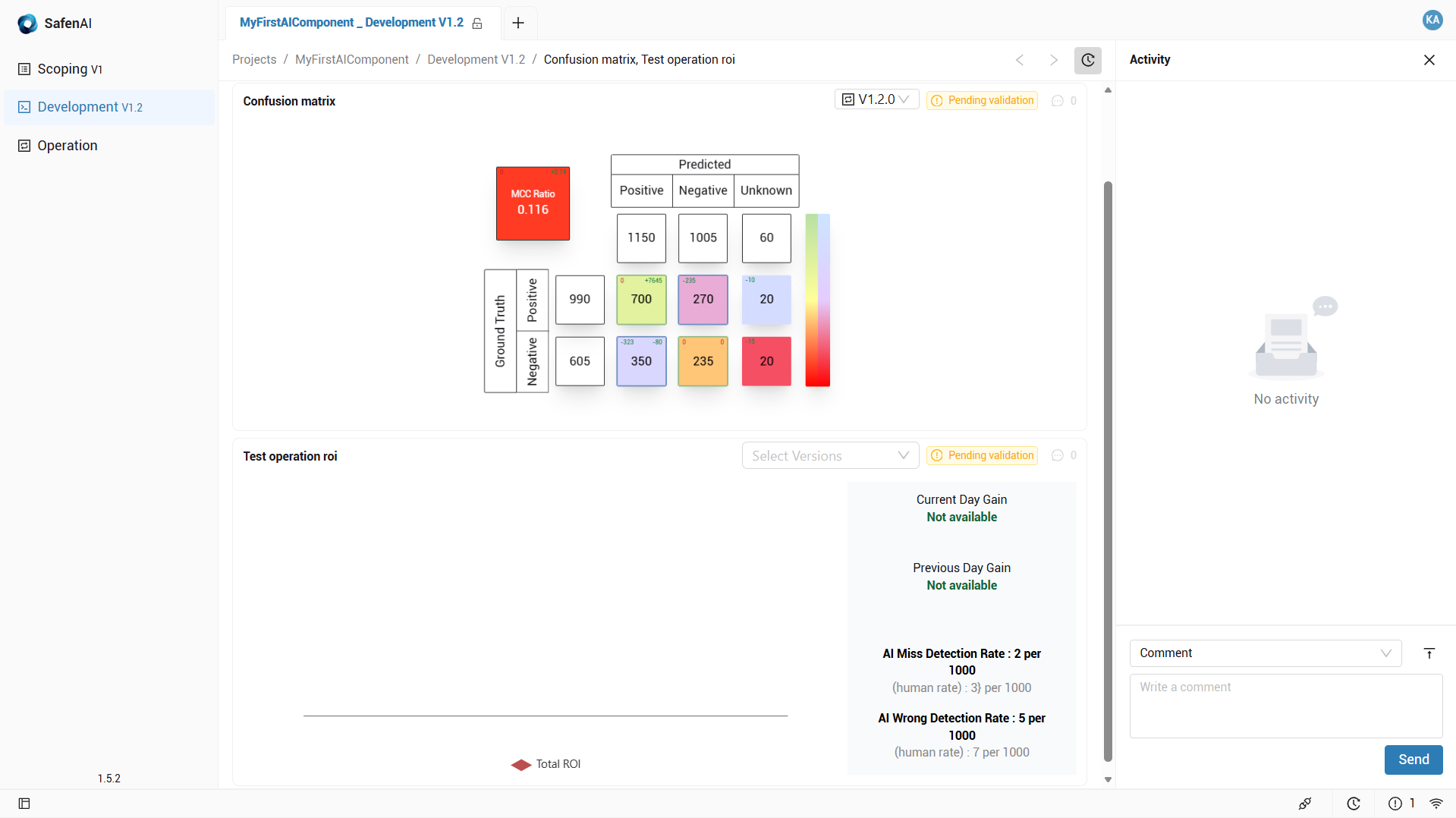
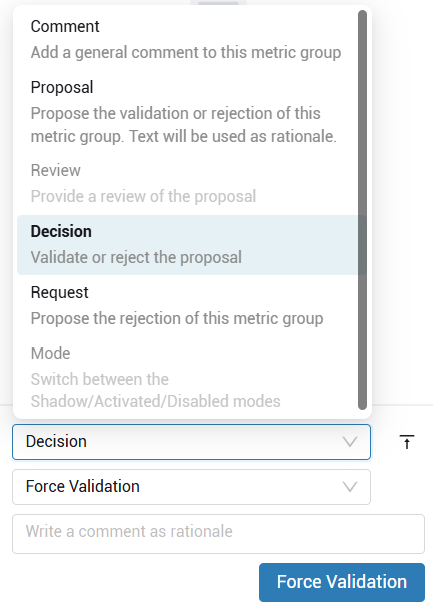
This time we are not going to waste any time with the writing of a Proposal, it's Review and then Validation. We will directly Force the validation of this PCIV. Click on the 'comment' button then select Decision. Once again a second dropdown menu will be available, open it and select Force Validation. Then click on the blue button "Force validation". As you can see, you don't have to write a rationale, but in a real context it is better to do so.
The version will now switch to read-only.
- Unvalidated Validation Stage version was AI Component version 1.2
- Once the Validation Stage of the AI Component have been validated it switched to operation.
- It kept the version 1.2 has it is the one being validated.
- It switched to operation
- While in operation it is in Shadow mode
- It started to increment the epoch : 1.2 [1]
We are now waiting for the first epoch associated to our newly AI Component in operation.
Operation : nominal life
An AI Component in Operation Stage uses two new concepts compared to previous stages
- The Epoch
- The Mode
An Epoch designate a period of time and its associated data and artefacts/metrics. Once in operation, the behavior of the AI Component is splitted into "epochs" to follow the behavior of the AI Component.
- Epoch [1] contains the validation elements.
- Epoch [2] refers to the first epoch in operation.
The mode refers to the operating mode of the component :
- Shadow means the AI Component is in a mode in which it does not generate action : it only produces what it would have done if it had any control. By default, a newly validated AI Component in operation is in Shadow mode.
- When it is decided that the AI Component shall be switched on, in other words, that one should use its results in operation, it will need its mode to be switched to Activated.
- Finally, an AI component whose performance is no longer useful can be switched to a Disabled mode.
Preparation
The following code is for PCIV 1.2.2 of AI Component named "MyFirstAIComponent" associated to Configuration "DEFAULT_CONFIGURATION" of version V1.
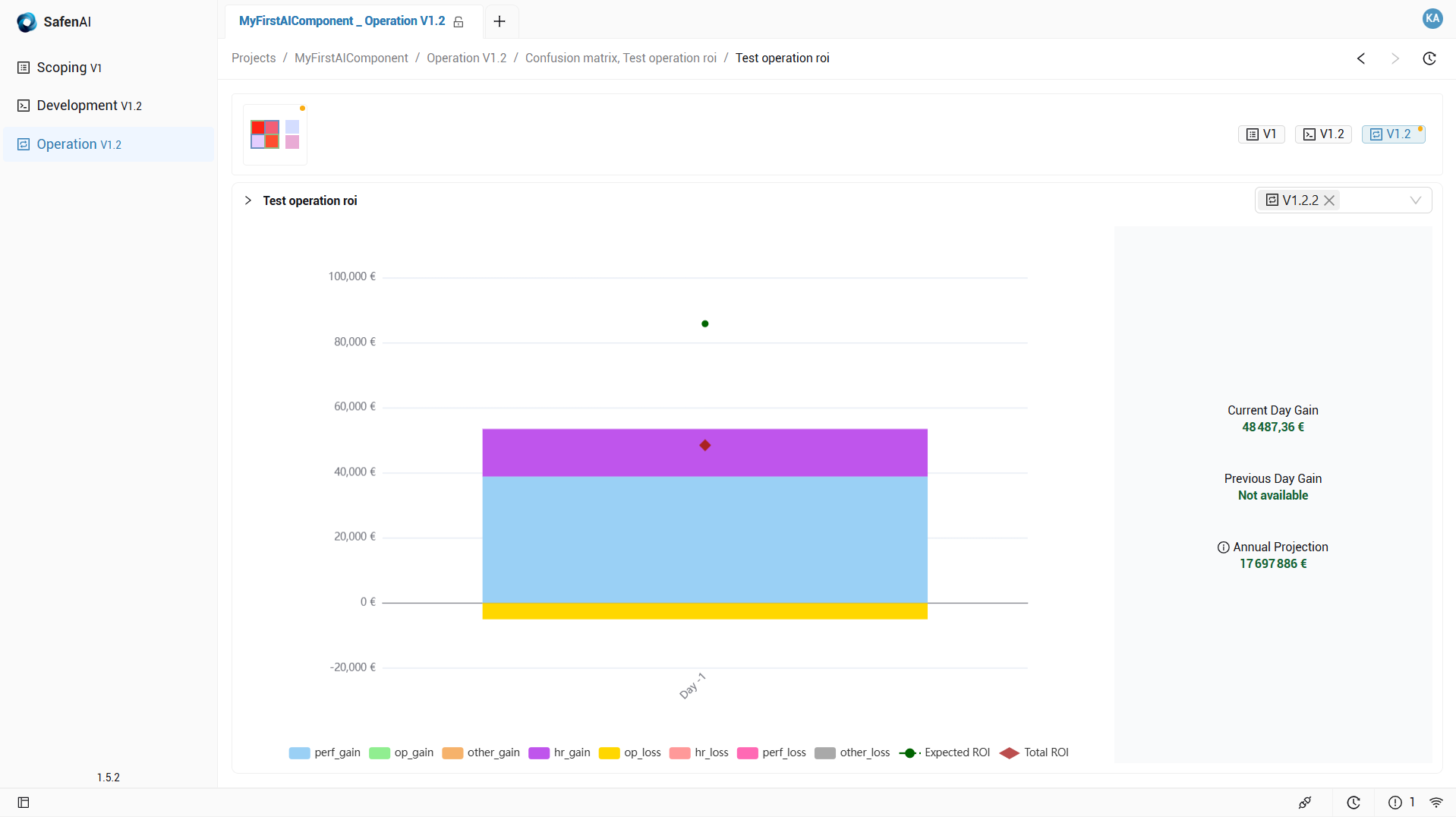
It contains the value (payload) for both the confusion Matrix and the Return on Investment for the first Epoch in Operation [2]
{
    "kdConfiguration": "DEFAULT_CONFIGURATION",
    "kdConfigurationVersion": "V1",
    "projectName": "MyFirstAIComponent",
    "prevVersionTags": [
        "1.2.1"
    ],
    "versionTag": "1.2.2",
    "stage": "operation",
    "metrics": [
        {
            "metricName": "CONFUSION_MATRIX",
            "values": [
                [
                    40,
                    500,
                    150
                ],
                [
                    275,
                    100,
                    550
                ],
                [
                    255,
                    50,
                    245
                ]
            ]
        },
        {
            "metricName": "OPERATION_ROI",
            "values": {
                "series": {
                    "op_gain": 0,
                    "perf_gain": 38866.56,
                    "other_gain": 0,
                    "hr_gain": 14620.8,
                    "op_loss": -5000,
                    "hr_loss": 0,
                    "perf_loss": 0,
                    "other_loss": 0
                },
                "expectedROIValues": 85820
            }
        }
    ]
}
Pushing
This PCI Version file can be pushed into the backend : POST /rest/versions
Monitoring
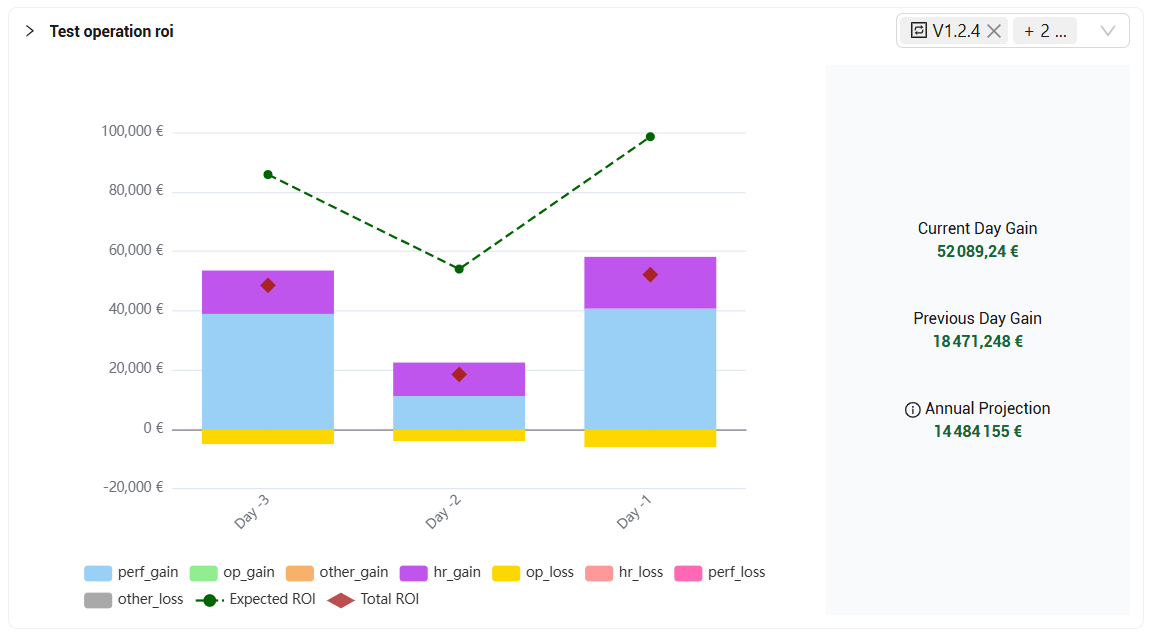
Once in operation, the main mission will be to check the behavior of the AI Component throught the multiple epochs. No decision of validation is required for the successive epoch to be pushed to Klarity.
More Epochs
Epoch 3
{
    "kdConfiguration": "DEFAULT_CONFIGURATION",
    "kdConfigurationVersion": "V1",
    "projectName": "MyFirstAIComponent",
    "prevVersionTags": [
        "1.2.2"
    ],
    "versionTag": "1.2.3",
    "stage": "operation",
    "metrics": [
        {
            "metricName": "CONFUSION_MATRIX",
            "values": [
                [
                    40,
                    500,
                    150
                ],
                [
                    275,
                    100,
                    550
                ],
                [
                    255,
                    50,
                    245
                ]
            ]
        },
        {
            "metricName": "OPERATION_ROI",
            "values": {
                "series": {
                    "op_gain": 0,
                    "perf_gain": 11183.808000000005,
                    "other_gain": 0,
                    "hr_gain": 11287.44,
                    "op_loss": -4000,
                    "hr_loss": 0,
                    "perf_loss": 0,
                    "other_loss": 0
                },
                "expectedROIValues": 53975.99999999999
            }
        }
    ]
}
Epoch 4
{
    "kdConfiguration": "DEFAULT_CONFIGURATION",
    "kdConfigurationVersion": "V1",
    "projectName": "MyFirstAIComponent",
    "prevVersionTags": [
        "1.2.3"
    ],
    "versionTag": "1.2.4",
    "stage": "operation",
    "metrics": [
        {
            "metricName": "CONFUSION_MATRIX",
            "values": [
                [
                    400,
                    50,
                    10
                ],
                [
                    25,
                    10,
                    50
                ],
                [
                    55,
                    54,
                    25
                ]
            ]
        },
        {
            "metricName": "OPERATION_ROI",
            "values": {
                "series": {
                    "op_gain": 0,
                    "perf_gain": 40667.03999999999,
                    "other_gain": 0,
                    "hr_gain": 17422.2,
                    "op_loss": -6000,
                    "hr_loss": 0,
                    "perf_loss": 0,
                    "other_loss": 0
                },
                "expectedROIValues": 98580
            }
        }
    ]
}
Epoch 5
{
    "kdConfiguration": "DEFAULT_CONFIGURATION",
    "kdConfigurationVersion": "V1",
    "projectName": "MyFirstAIComponent",
    "prevVersionTags": [
        "1.2.4"
    ],
    "versionTag": "0.2.5",
    "stage": "operation",
    "metrics": [
        {
            "metricName": "CONFUSION_MATRIX",
            "values": [
                [
                    12,
                    15,
                    65
                ],
                [
                    69,
                    45,
                    89
                ],
                [
                    45,
                    32,
                    56
                ]
            ]
        },
        {
            "metricName": "OPERATION_ROI",
            "values": {
                "series": {
                    "op_gain": 0,
                    "perf_gain": 36923.232,
                    "other_gain": 0,
                    "hr_gain": 13889.76,
                    "op_loss": -4750,
                    "hr_loss": 0,
                    "perf_loss": 0,
                    "other_loss": 0
                },
                "expectedROIValues": 81529
            }
        }
    ]
}
Switching Modes
Depending on the performances of the AI Component it is possible to switch its mode using the Mode action and switching it to Activated.
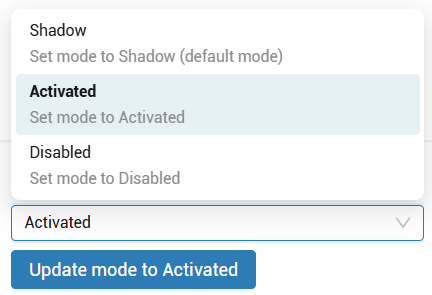
In the same way, it is possible to switch the component back to Shadow or to disable it with the Disabled mode.
Getting Multiple Versions in Operation.
As explained earlier, Only AI components that have passed the Validation stage can switch between the different operating modes: Shadow, Activated, and Disabled. It means that multiple version of an AI Component can be Validated.
Direct
A new version can directly be pushed for validation. The following code, for instance, will propose the version 1.3 of the AI Component for the Validation Stage.
{
    "kdConfiguration": "DEFAULT_CONFIGURATION",
    "kdConfigurationVersion": "V1",
    "projectName": "MyFirstAIComponent",
    "prevVersionTags": [
        "1.2.0"
    ],
    "versionTag": "1.3.0",
    "stage": "development",
    "metrics": [
        {
            "metricName": "CONFUSION_MATRIX",
            "values": [
                [
                    500,
                    200,
                    100
                ],
                [
                    500,
                    500,
                    500
                ],
                [
                    20,
                    20,
                    20
                ]
            ]
        }
    ]
}
By Request
It is possible to request a new version for Scoping Stage or for the Validation Stage (formerly Development Stage)
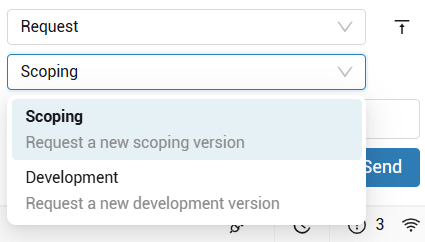
This way, the development Team will now a new version for a previous stage is expected. This request should naturally go with requirements and expectations formaly defined so that the work can be properly achieved.