General application layout
Layout concepts common to the whole Klarity Dashboard application. The following layout breaks down the Klarity Dashboard application into several canvases, each with its own purpose. The general philosophy, however, remains to offer the user as much freedom as possible to organize his workspace. The presence of tabs at the top is one, but so is the ability to resize the various windows. Ultimately, the aim is to evolve Klarity's environment into a PWA (progressive wep application) that can be run locally.
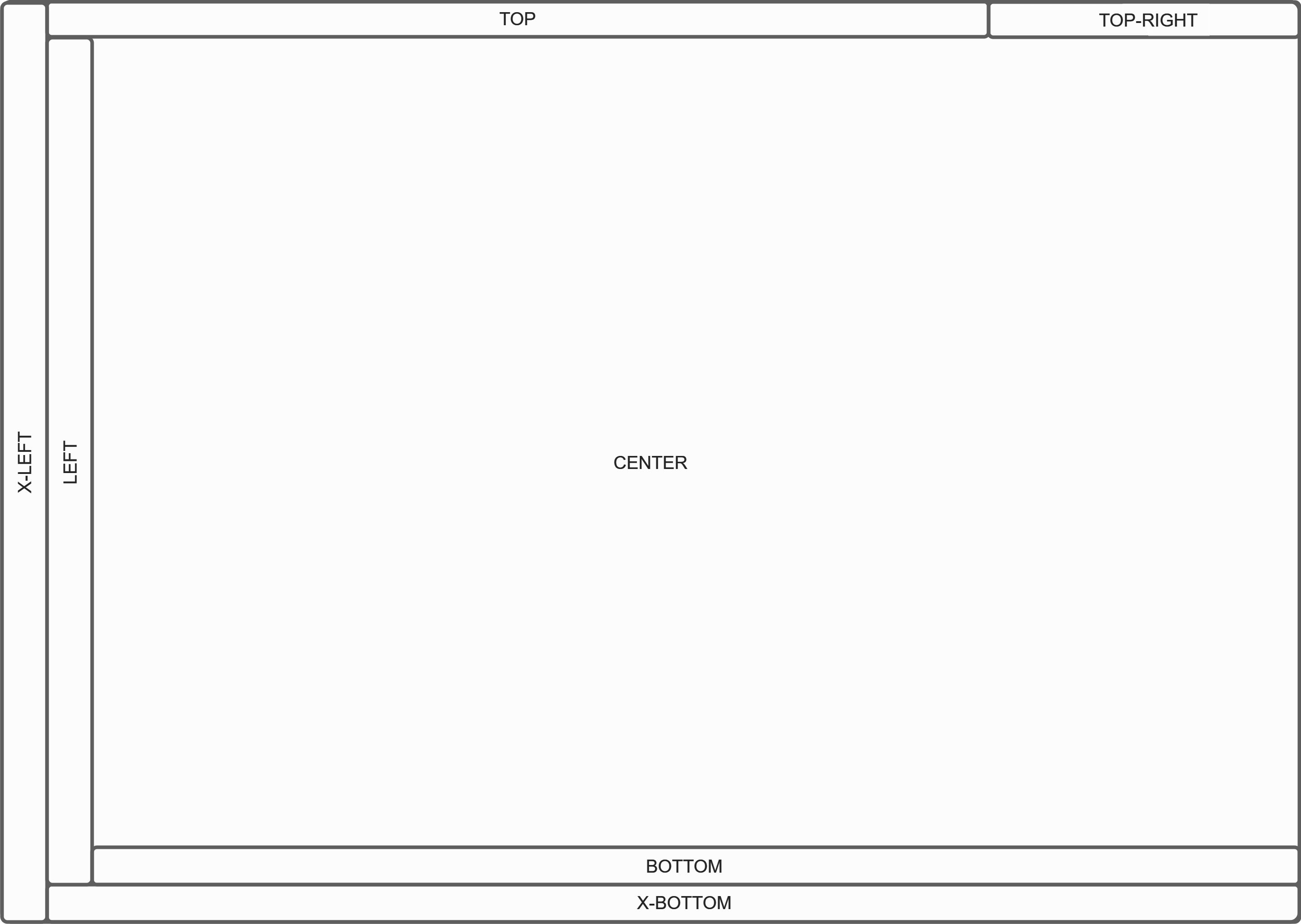
| Canvas Element | Description |
|---|---|
TOP-RIGHT | Logged-in Account Settings & configuration |
TOP | Tabs to navigate faster between dashboards of different projects. |
X-LEFT | Navigation bar between multiple application (Klarity Craft, Klarity Dashboard, ...) |
LEFT | To be defined:
|
CENTER | Content of the tab selected in TOP. |
BOTTOM | Log bar |
X-BOTTOM | Status bar & notifications |
Access and navigation rights
Access rights are associated to user roles. Depending on their role :
- on Klarity Dashboard, user may navigate within the different couple stage-abstraction-level and be able to read different information and write (comment/validate/request action/send issue...)
- on Klarity Craft, user may be allowed to read issues pushed by Klarity Dashboard and to push new (PCI). to Klarity Dashboard.
more detail
Views
A total of 9 views have been identified, each being a combination of stage and abstraction (3x3). Conceptually, their content will be mostly different on the abstraction scale. On the step scale however, it's actually the content of the PCIV that defines what is to be displayed : In other words, an identical PCIV will display the same thing on all three project-level views. In reality, of course, the expected content is different : requirements and specifications in the scoping view, component evaluation metrics in the development view, and finally operational elements in the last view.
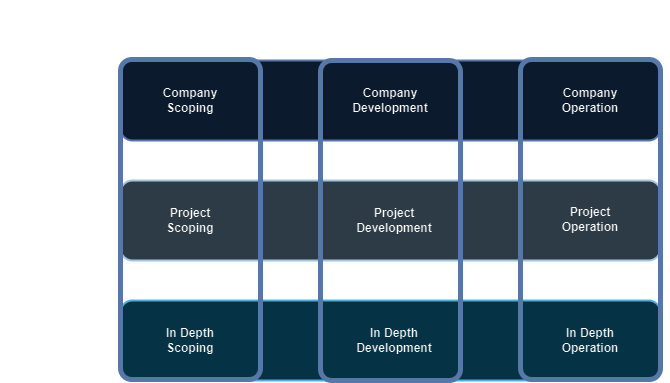
Fig 2. Stage and Abstraction Level Matrix
Scoping, Development and Operation are the three stages, they refer to the temporality of the conceived component. See the stage section in concept more details regarding the different stages.
Scoping
Scoping is associated to high-level specification of the AI Component that is expected.
This stage will mostly be used to display and agreee on requirements, on normative references, on business perspectives.
- Roles Involved : Product Owner, Business Expert, Quality Engineer and Lead Dev AI
Development
during the Development stage the component is being designed and integrated. An executable component will be created: functional, it must be able to return indicators from input elements similar to those used in operation.
This stage should enable us to compare the results and behavior of the designed component with the initial requirements produced during the Scoping stage.
- Roles Involved : Product Owner, Business Expert, Quality Engineer and a whole AI Dev Team
Operation
Once the component has been validated and is considered operational it goes into the Operation stage where it is implemented and operated in an industrial situation.
During this last stage, users want to be sure that the AI component's behavior respects the reference criteria, in situation and over time. The inference does not drift, the input elements correspond to the elements used for training and model parameterization, and so on.
- Roles Involved : Product Owner, Business Expert, Quality Engineer, System Operators
Navigation
As the following flowchart clearly illustrates : it must be possible to navigate from anywhere to anywhere in the applicatin with a few number of click. This flowchart is light : for instance, it is possible to pin specific views in the TOP section and to directly switch to it. One can then go from In-Depth Development to Company Operation with only one click.
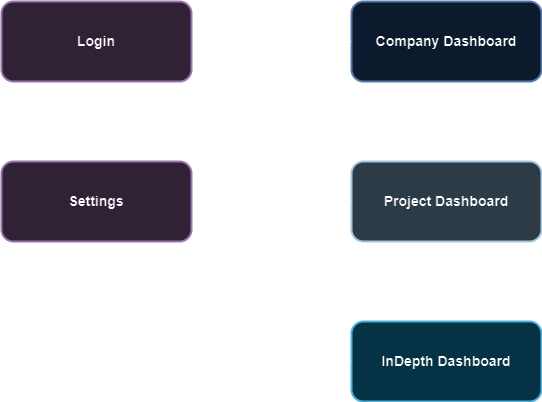
Any Level or Stage
Top
- [x] Level and Stage Name (Company Scoping or Company Operation)
- [ ] Other views
Top-Right
- [x] User Name
- [x] Log out function
- [ ] Parameter, profiles, etc.
- [ ] Notifications
Left
- [ ] Navigation between KD and KM
- [ ] KD : Navigation between the abstraction levels.
Bottom
- [ ] : display message on action taken... will be specify more precisely during POC
- [ ] but will allow to identify online / offline work
- [ ] Log Bar
- [ ] Status Bar
General Overlay
- [x] : login modal with a blurred background
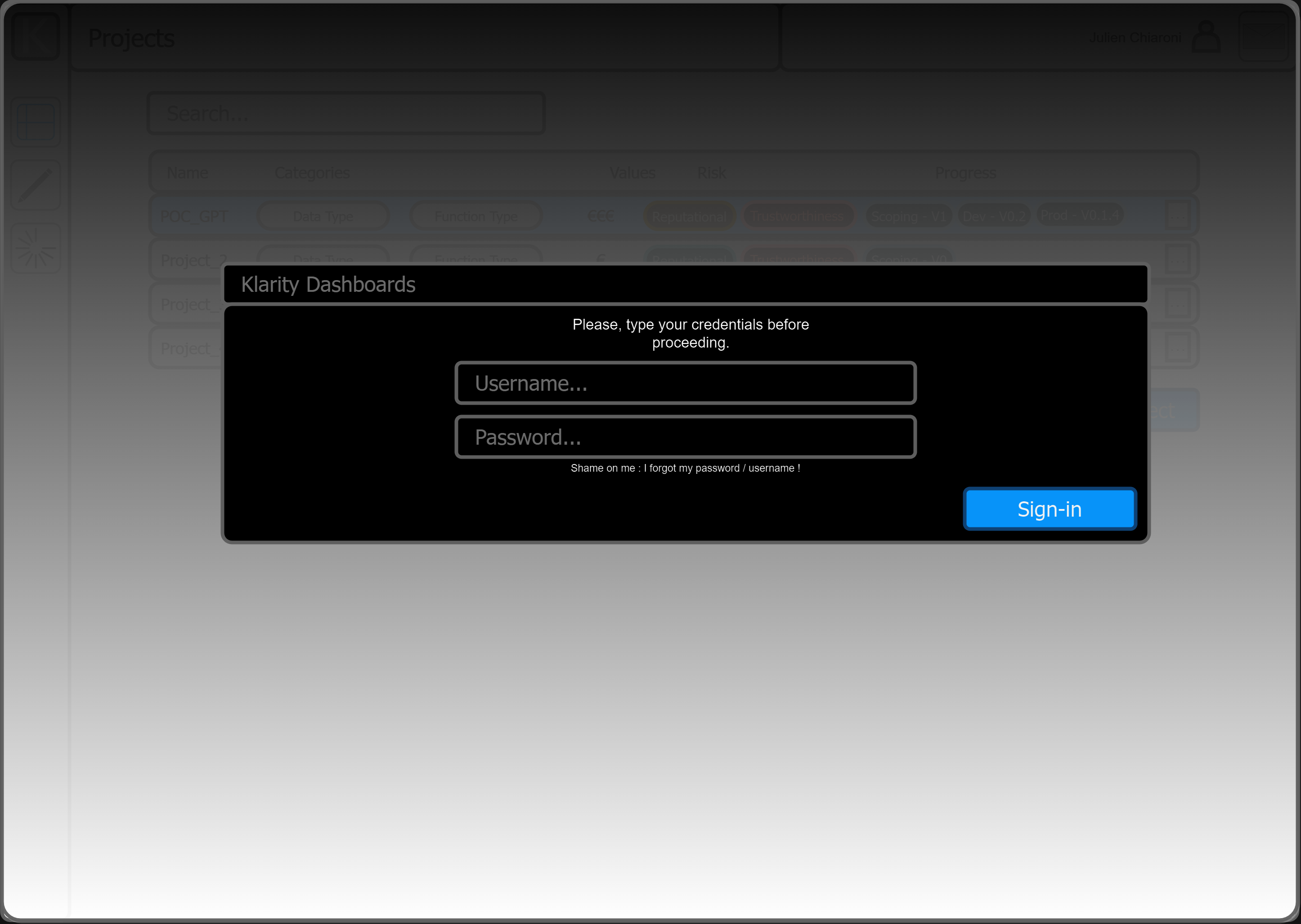
Fig 3. Login modal
Company Level
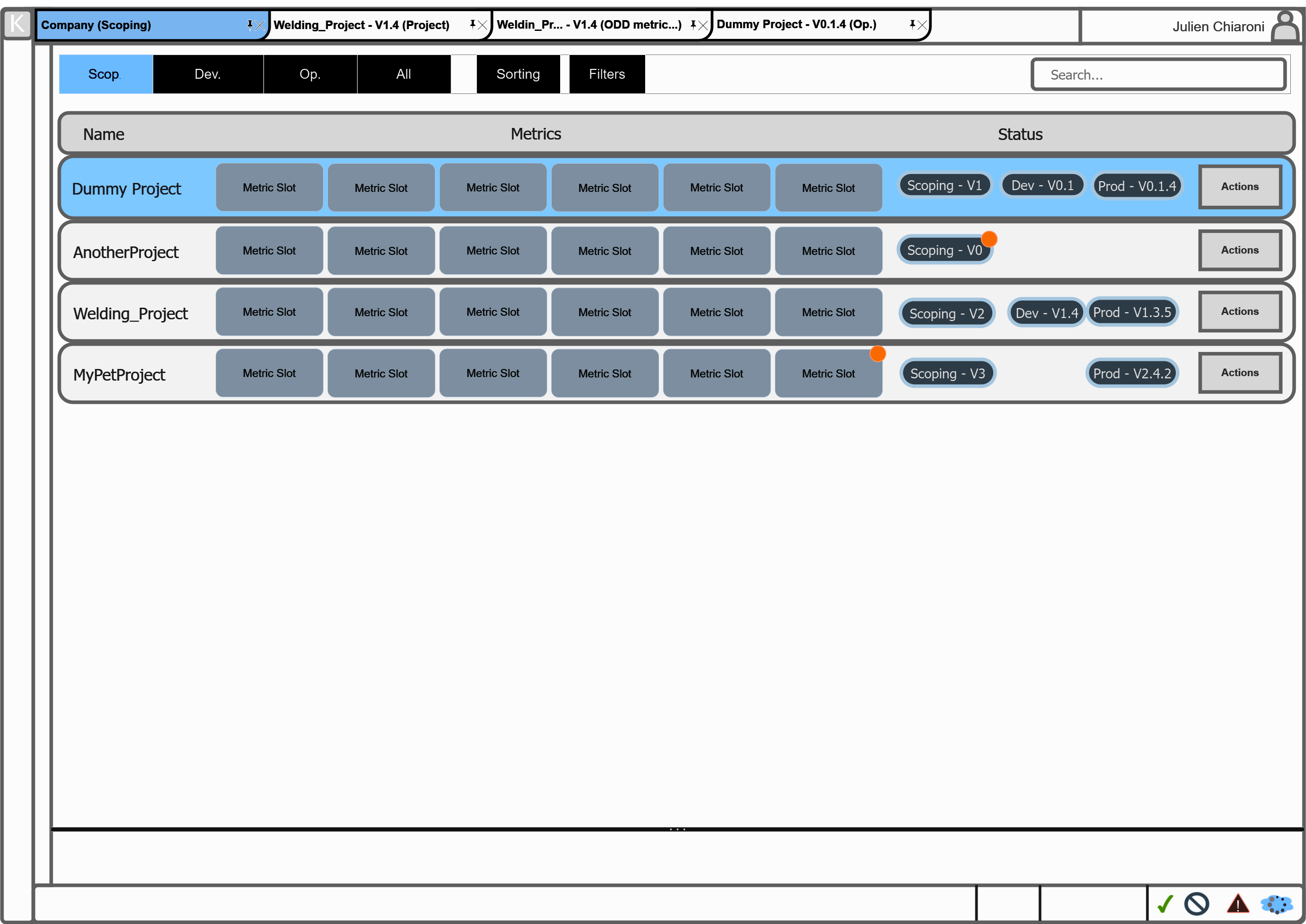
Fig 4. Klarity Company Dashboard
This Abstraction Level contains two different stages only : Scoping and Operation. It displays synthetics metrics for all of the projects of the company.
As for the MVP version of Klarity, they will both be mostly identical, the only differences will be in the following informations :
- The metrics displayed in the row
- The available decision
- The associated role
_MVP : This dashboard might be build from "views/groups/metrics" present in configuration file.
Company Center
- [x] A row per project
- [x] A row has multiple column defined as it follows
- [x] Project name
- [ ] For each stage, the current active version.
- [ ] The project status
- [ ] The project validation status
- [x] Company level metrics
- [ ] The project request
- [ ] double click on a project will redirect to the project view (TBD :
it will change/open a dashboard to a deeper level of abstraction (how deep)
how to switch to the Development stage ? - [ ] 'Add a Project' button
- [ ] A button will allow action to be performed directly from this view
The version might be clickable to display the metric associated to currently clicked version depending on the stage selected
Project Level
Center
The layout and mecanismes of this dashboard are somehow identical for each of the stages of Klarity Dashboards. The only differences will be in the following informations :
- The list of metrics displayed in the view
- The available decision in operation
- The associated roles and authorisation
- Projec-Operation requires manipulation of time/log
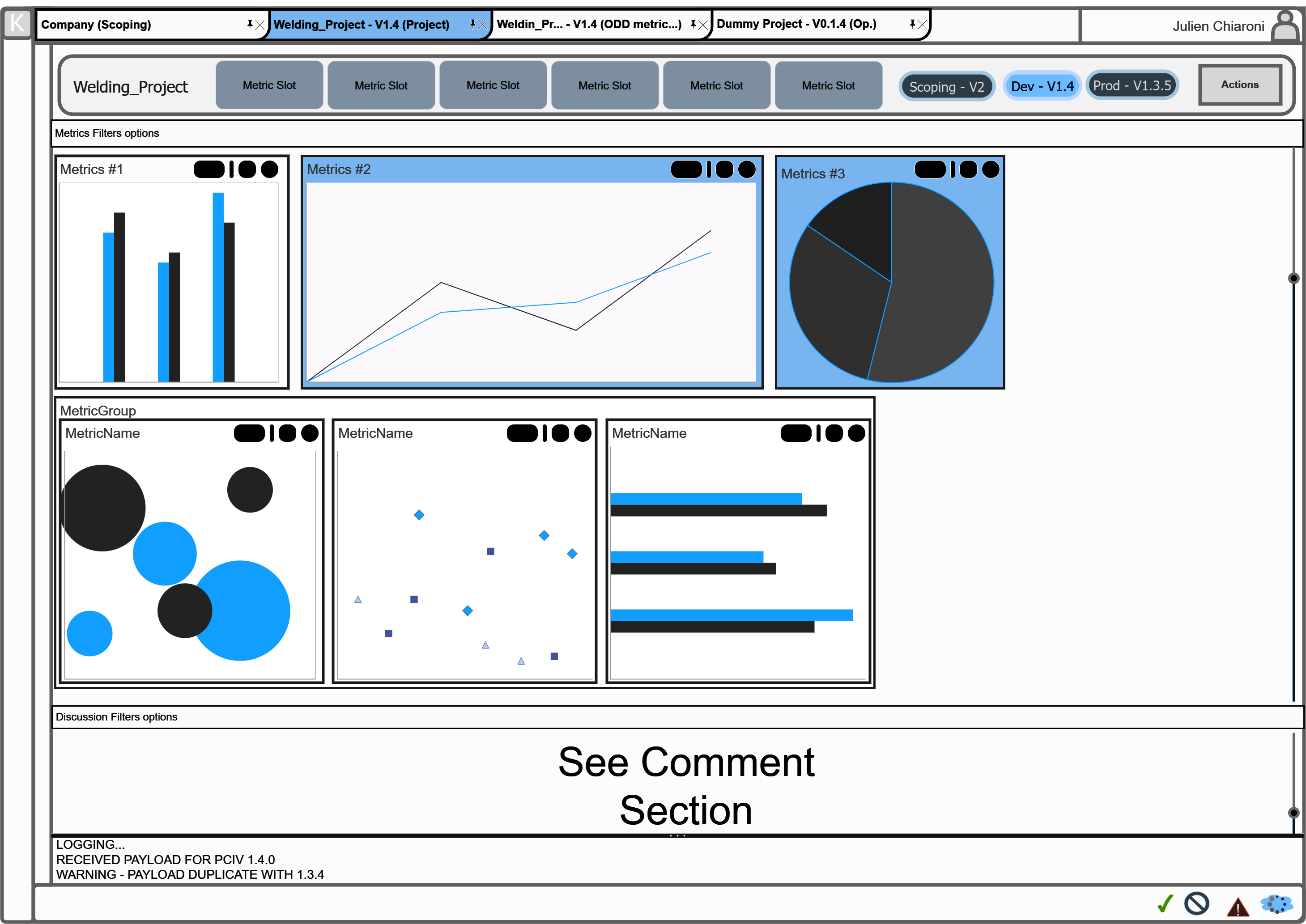
Fig 5. Klarity Project Dashboard
- [ ] Active Project Project synthesis as displayed in the Company Dashboard. Functionalities TBD
- [ ] Timing Not implemented on MVP : Timing function TBD
- [ ] Not implemented on MVP : switch between the different active version of each stage
- [ ] Comments/Issues : A text/comment zone where user (according to his role) can read comments and push comments to.
Its content is related to the selected/active metric
CRUD API. Third party software might be used TBD.
Not implemented on MVP Operation dashboard, except as front
Full Product : user can read/write offline and push when online
_Full Product : several panel can be add to a single description to enable multiple of complexe actions - [ ] A decision is expected : An Action/decision button that allow user to interact with the project behavior/status. All Action rely on the same type of content. See Below
In Depth Level
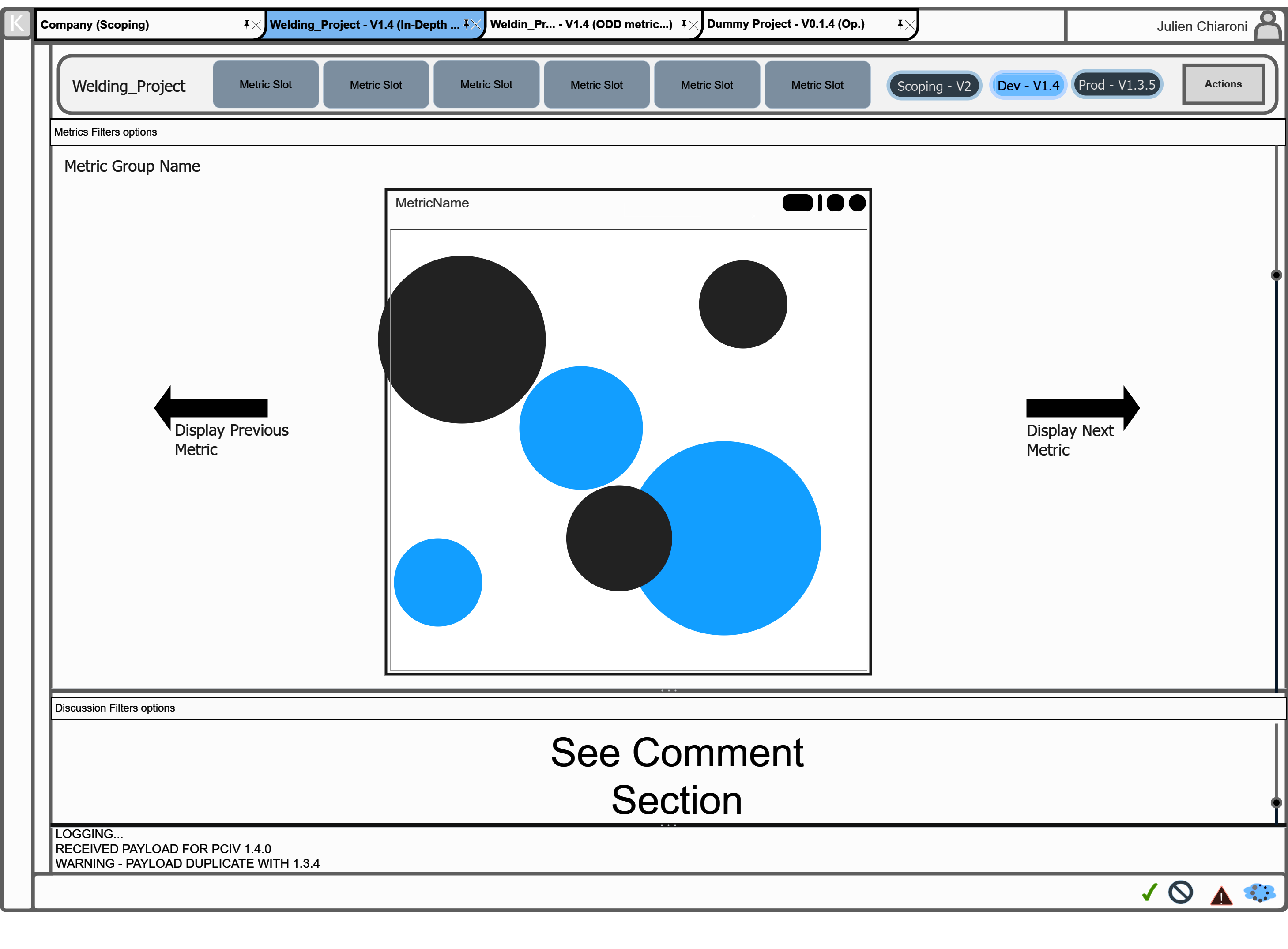
Klarity InDepth view
The In Depth level is accessible from the project level. The way to proceed must be defined as it can be :
- by double clicking a metric or a metric group (single click simply focus on it)
- by clicking a specific button in the metric/widget field/window
- [ ] The In Depth level show the Active Project just like in the Project Level.
- [ ] Display the metric group name
- [ ] Display the name of the currently displayed metric
- [ ] Display a set of tool
Change display mode
Fullscreen (must think about how to leave the fullscreen)
Not implemented on MVP : customize widget/rendering - [ ] Switch to next or previous Metric * of the same metric group * between metric group (TBD)
- [ ] Validity status are display on widget outlyer (same style a projects)
Rendering must be defined - [ ] Completion status is optional for production in the title of the widget
Rendering must be defined
Nor in MVP - [ ] Name and tooltip apply
- [ ] Individual simple metrics can be gouped in a dedicated widget
(small table TODO : describe)
Comment section
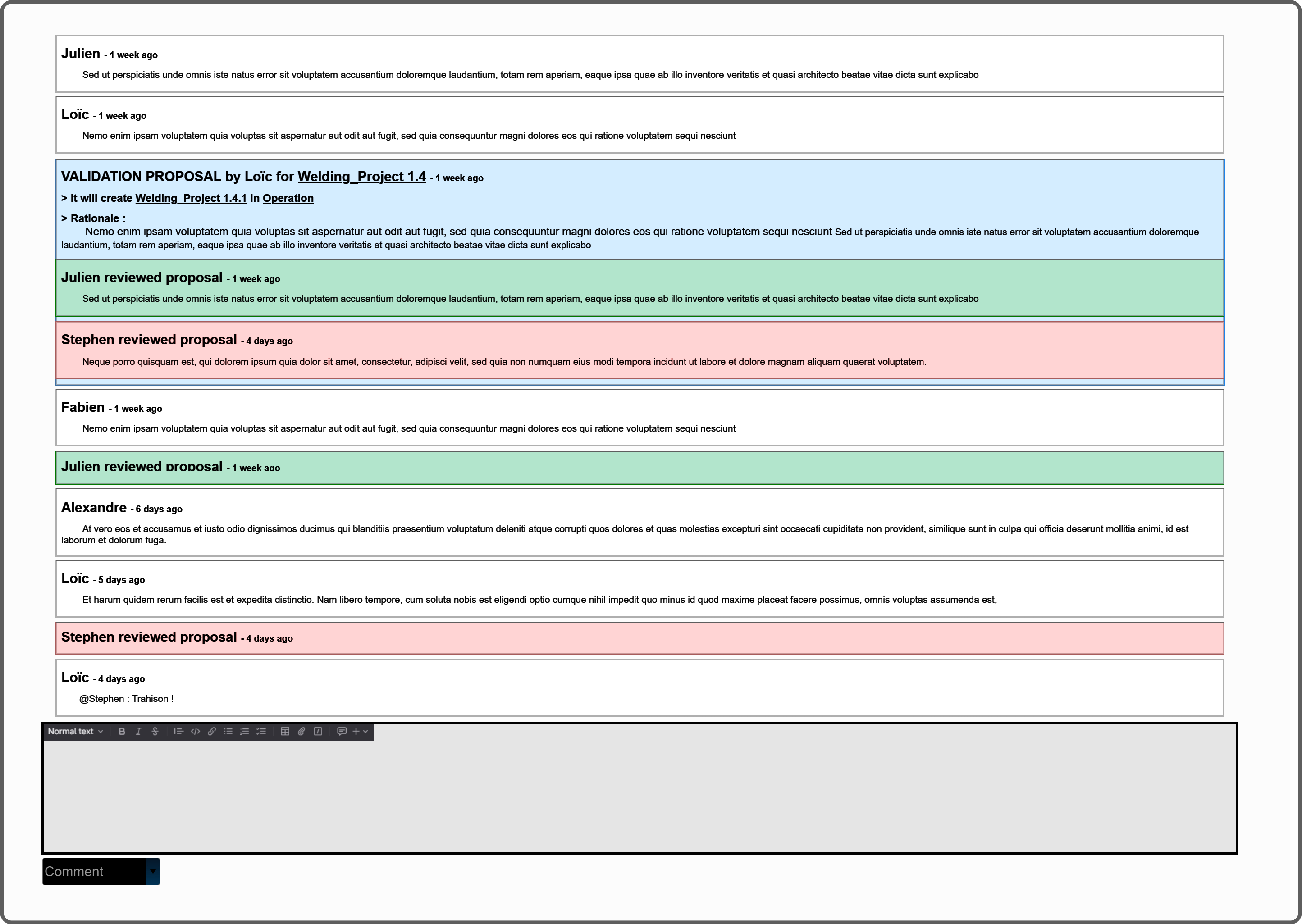
Klarity comment section focus
- [ ] Filtres option (MVP)
- [ ] "First comment or previous versions dicussion history" => In case of multiple versions : contain the read-only discussion/rationale history of the current version. Collapsable.
- [ ] "Comment N / Rationale N" - contains the current comments of the current version.
- [ ] "Comment" : Clicking on the “write a comment” window will extend the window and display “dropdown button” : COMMENT.
- [ ] typing a comment and clicking “COMMENT” will send a new comment.
- [ ] Dropdown contains "RATIONALE" type of message. Clicking the dropwdown arrow will allow user to select “RATIONALE” instead.
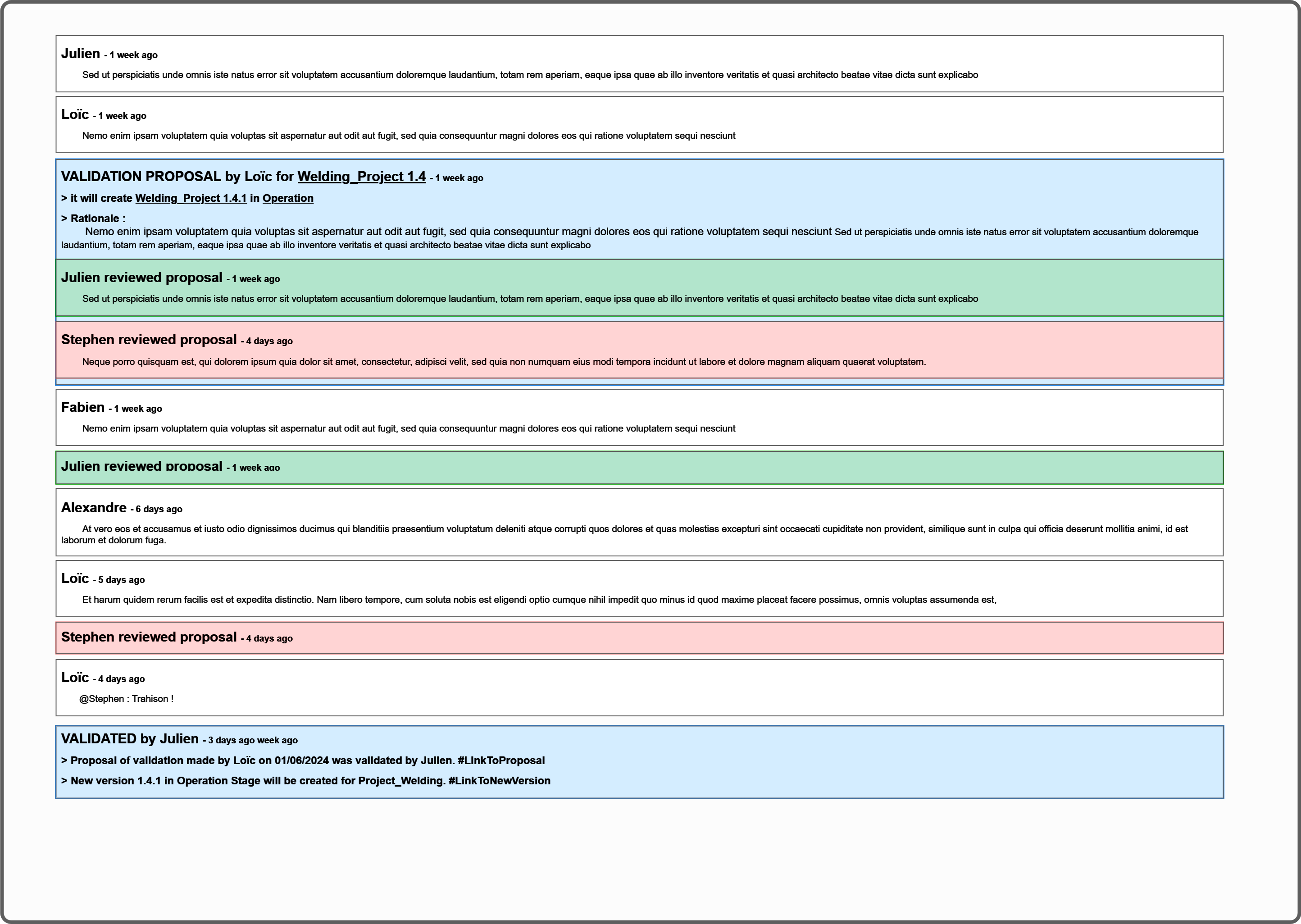
Klarity comment section focus with validated item
- [ ] Selecting a RATIONALE will allow to select the type of rationale. As there is no “pending validation”, the only possible options are : “Request new scoping” “Request new dev” “Remove from operation”
- [ ] typing a comment and clicking “RATIONALE” will send a new rationale associated to the request type. It cannot be sent if no request type is selected. That action will issue a request to KM.
Actions
Content
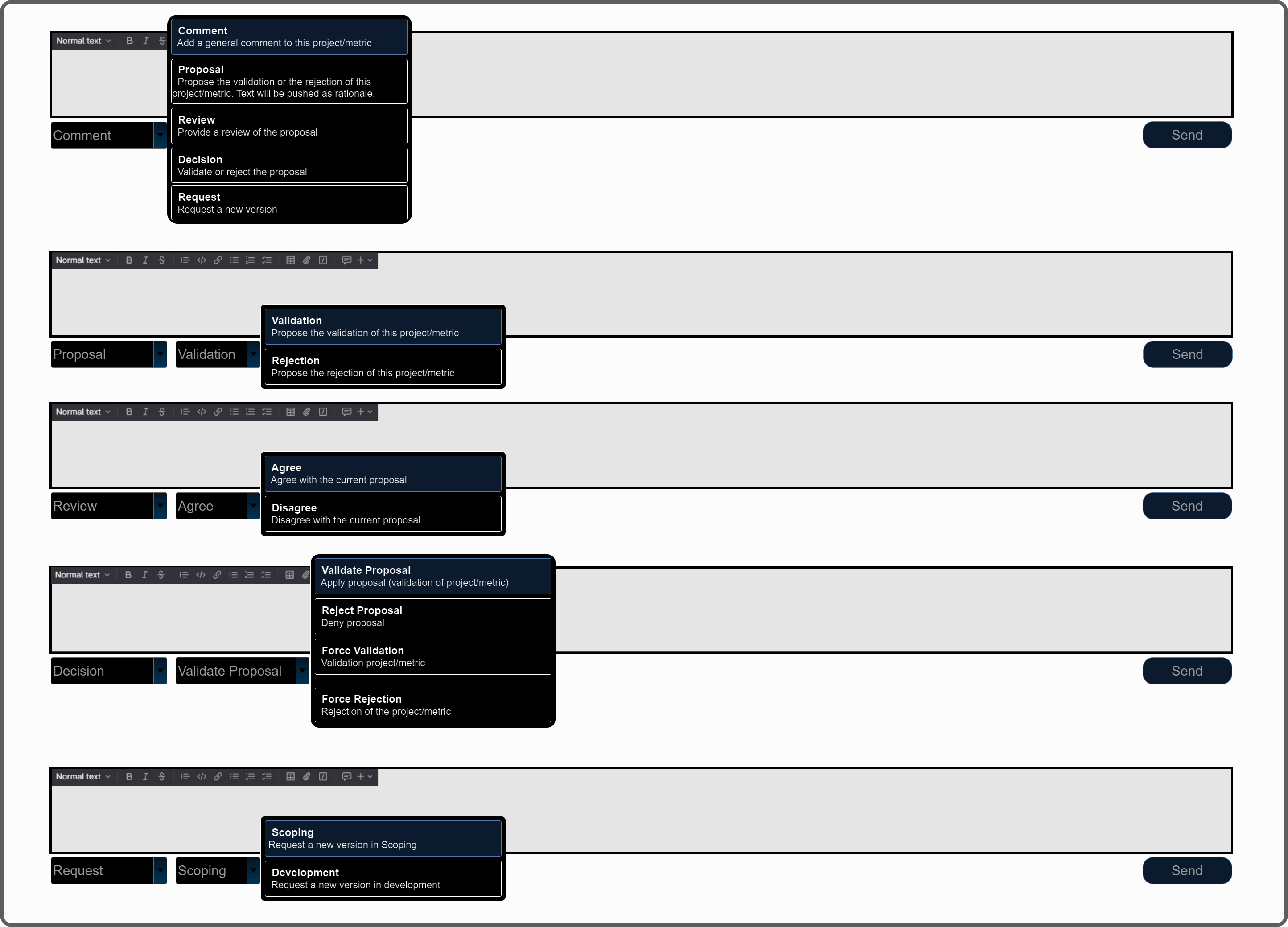
- [ ] a button will allow to display only the currently available rationales for this decision (other users may be elligible to send their rationale and current user can see them)
Log Bar
Type :
ℹ INFO
⚠ WARNING
‼ ALERT
Timestamp : per day : [YYYY-MM-DD] per log : [HH-MM-SS AM/PM] Origin : [Extension ID] or nothing if it's core. Content :
core : TBD extension : defined in the extension, rules TBD
Format : [Type] [Extension ID] [Content] [Timestamp] Example :
2024-05-29
ℹ INFO Julien reviewed metric group data_precision from welding 1.3.0 [5:48:36 PM]
ℹ INFO Loic reviewed metric group data_precision from welding 1.3.0 [5:48:57 PM]
⚠ WARNING Loic validated metric group ODD_Range from welding 2.0.0 before your comment [12] - synchronization [5:52:17 PM]
Identical log can be collapsed
- ℹ INFO You are synchronized with server (4)
- ℹ INFO You are synchronized with server [5:20:21 PM]
- ℹ INFO You are synchronized with server [5:30:08 PM]
- ℹ INFO You are synchronized with server [5:40:15 PM]
- ℹ INFO You are synchronized with server [5:50:12 PM]
Status Bar
- Status (connected/not connected)
- Number of mutations
- Pending Actions
- Extensions